How to resolve PDF/X-4 standard errors
When uploading your artwork, you may see a pre-flight error relating to the PDF Standard or PDF/X-4.
These errors usually mean that the PDF has not been exported correctly as a valid PDF/X-4 file, or that the PDF/X-4 information is missing or stored in the wrong place within the file metadata.
In most cases, this can be resolved by returning to your original artwork file and re-exporting the PDF using the correct PDF/X-4 export settings.
Errors regarding PDF/X-4 settings
You may see one or more of the following errors in your pre-flight report:
- PDF/X-4 entry missing or incorrect
- XMP does not have a RenditionClass entry in the XMP Media Management Schema
- XMP does not have “title” entry in the Dublin Core Schema
- XMP does not have a VersionID entry in the XMP Media Management Schema
- PDF/X entry in Document info present, must only be present in XMP metadata
- PDF/X version key missing
- Trapped key not present in XMP metadata
- Compressed metadata stream on document or on object level
What these errors mean
PDF/X-4 is a print-ready PDF standard used to help ensure that artwork is suitable for professional print production.
For a PDF to be recognised as PDF/X-4, it must include certain identification and metadata information. This information tells the pre-flight system how the PDF was created, which PDF/X standard it follows, and whether the file meets the required print conditions.
If this information is missing, incomplete, or saved in the wrong part of the PDF, the file may fail pre-flight even if the artwork itself looks correct on screen.
These errors are usually caused by one of the following:
- The PDF was exported without selecting PDF/X-4 as the PDF standard.
- The wrong PDF preset was used.
- The file was saved or edited after export in a way that changed or removed the PDF/X metadata.
- The PDF was created using software that does not write PDF/X-4 metadata correctly.
- The PDF was manually converted or amended instead of being exported directly from the original artwork file.
How to fix the issue
The best way to resolve these errors is to re-export the PDF from the original design file using the correct PDF/X-4 settings.
In Adobe InDesign
1. Open the original InDesign file.
2. Go to File > Export.
3. Choose Adobe PDF (Print) as the file format.
4. In the export window, set the Standard to PDF/X-4:2010.
5. Ensure additional settings, such as colour profile and crop mark settings, are set to the publisher’s required specification settings.
6. Export the PDF.
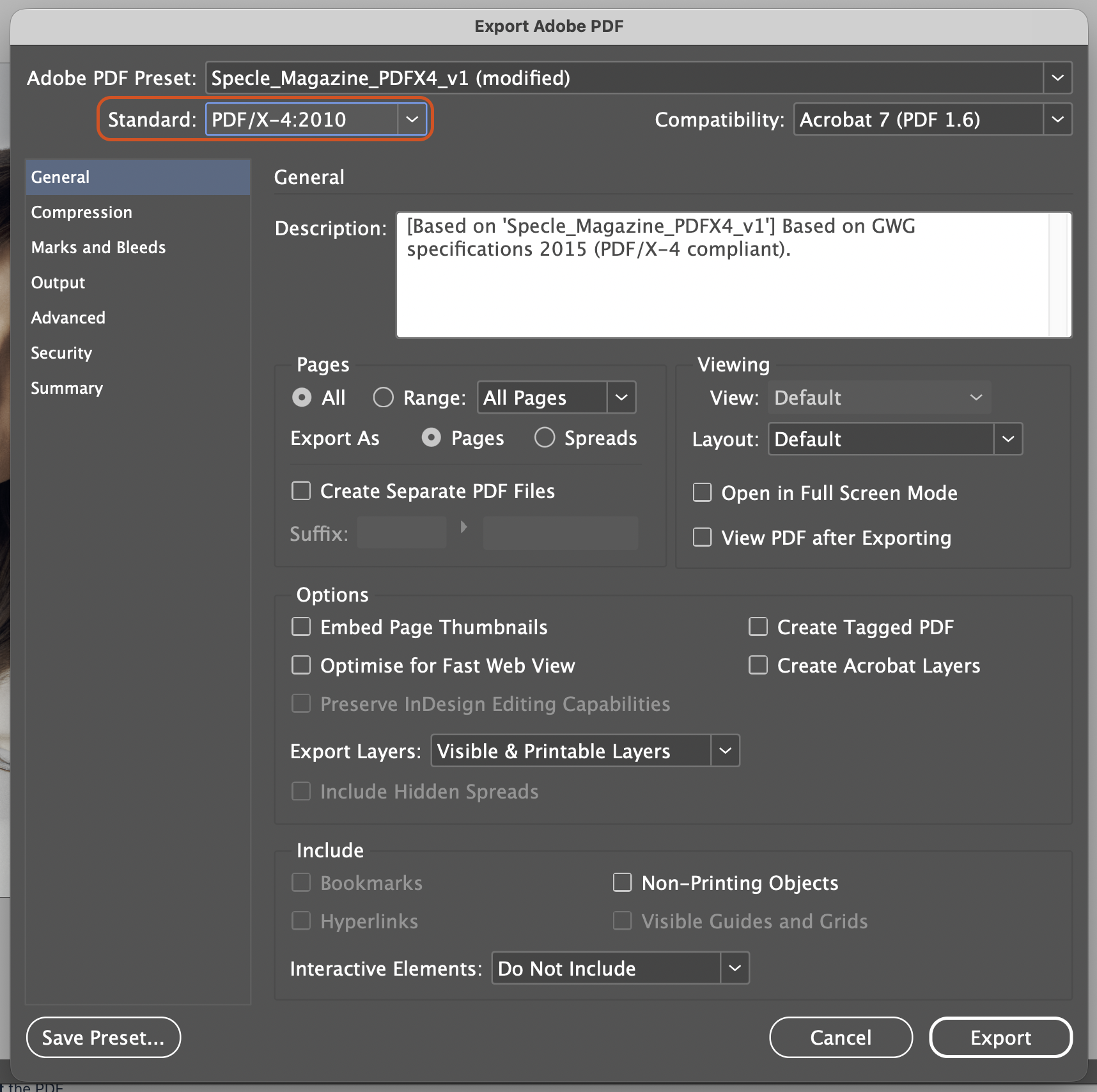
If the error continues after re-exporting, please check that:
- The file was exported from the original artwork file.
- PDF/X-4:2010 was selected during export.
- The PDF has not been re-saved, optimised, compressed, or converted after export.
- The software used to create the PDF supports valid PDF/X-4 export.